 Capa
CapaYour first day
For editors. Find an entry, change it, and publish or schedule it.
This page is for people who write and publish. You will find an entry, edit it, and put it live. No code involved.
Sign in
Open the invitation email and follow its link. If you are new to Capa, you create your account there, with the address the invitation was sent to. After that, sign in at app.capacms.com.
You land in the project you were invited to. If you work on several, switch with the project switcher at the left of the top bar.
Find your way around
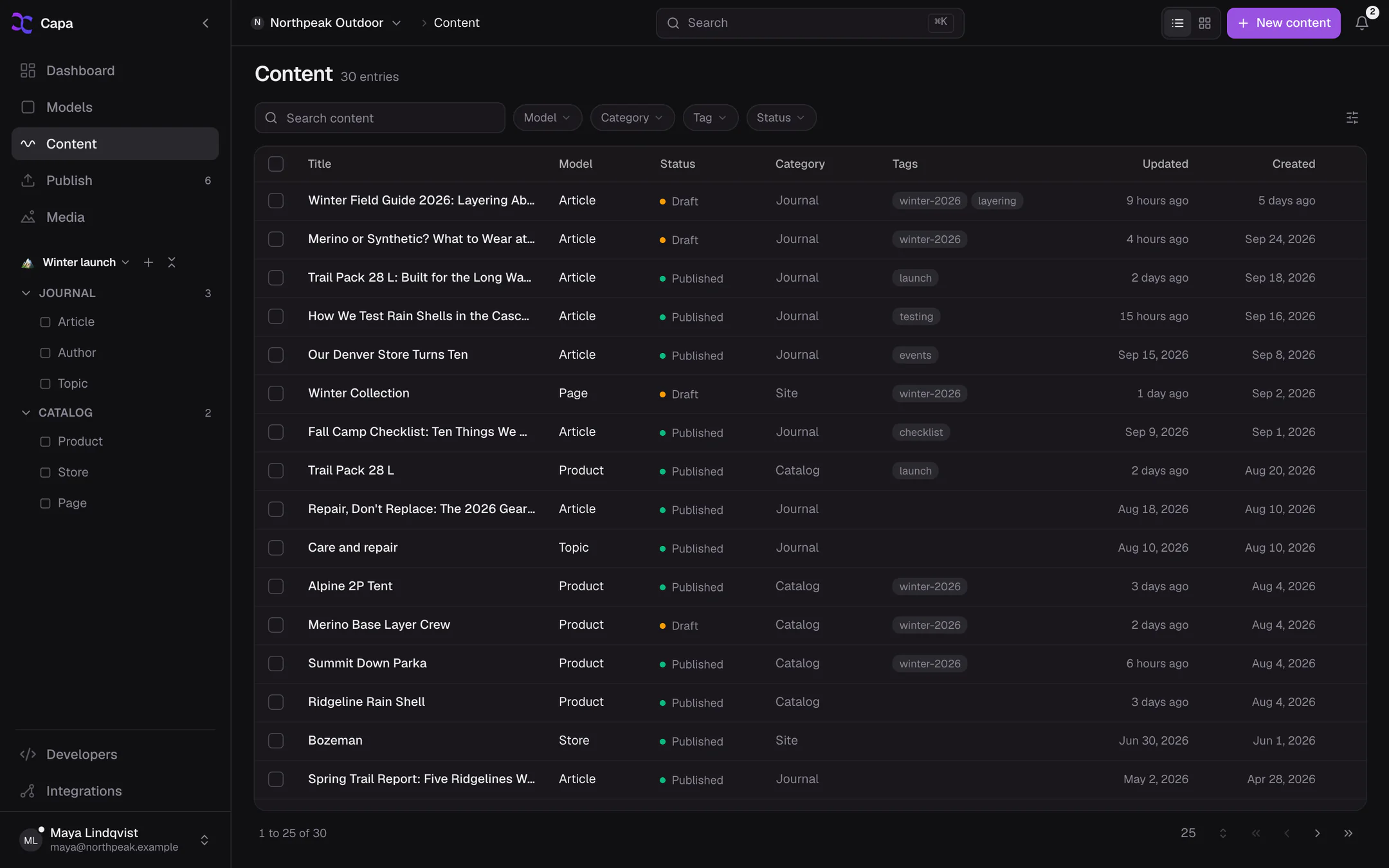
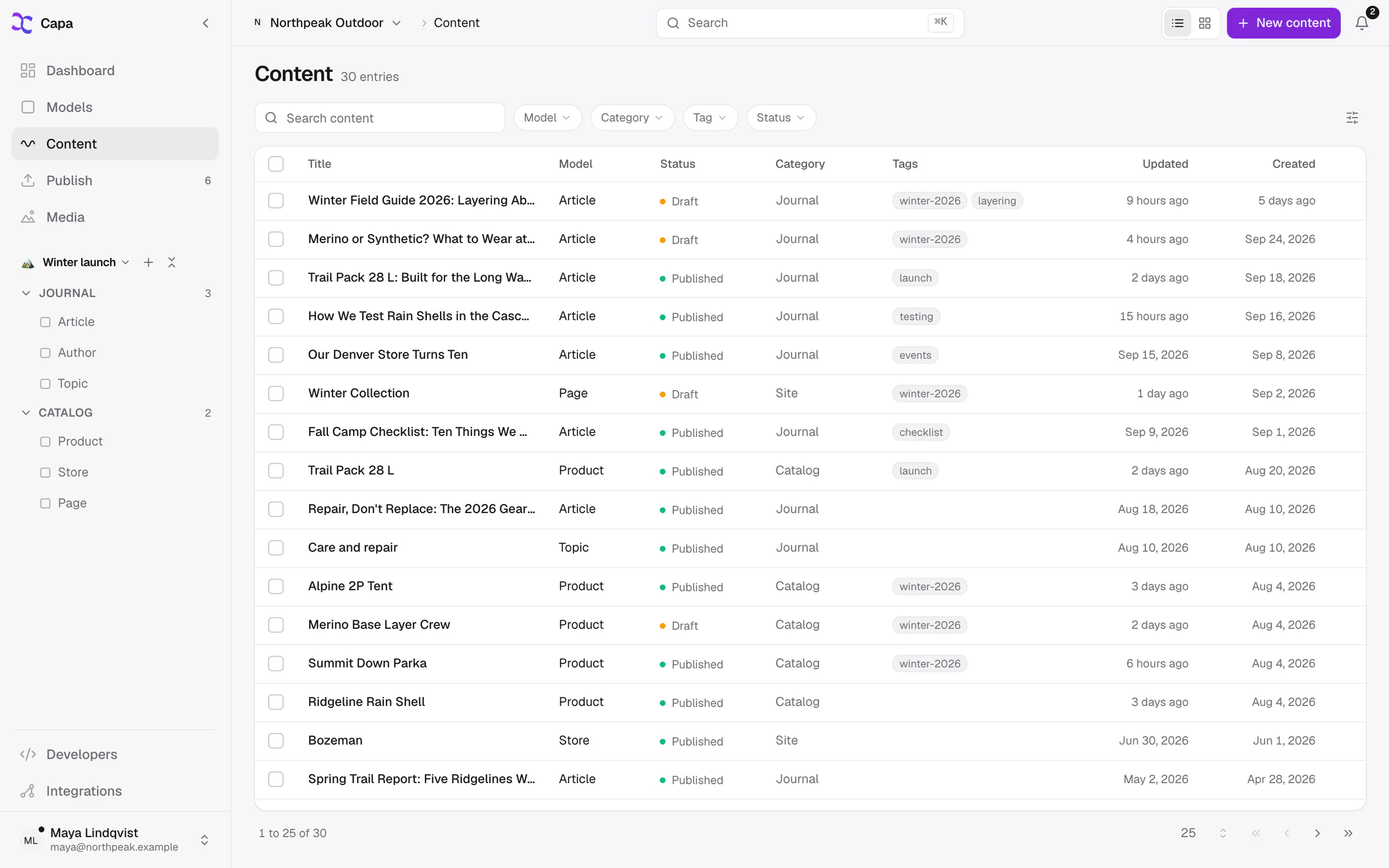
The sidebar on the left holds:
| Item | What is there |
|---|---|
| Dashboard | Counts of entries and files, recent updates, and what is scheduled. |
| Models | The content types of this project, such as Article or Product. |
| Content | Every entry, of every model, in one list. |
| Publish | Every entry with changes waiting to go live. Shown if you can publish. |
| Media | Images, videos and documents. |
Below them is your team's workspace: folders and shortcuts to the models and entries you use most. See Navigating the admin.
Find an entry
Choose Content, then type in Search content. Narrow the list with the Model, Status and Tag filters.
Or press ⌘K (Ctrl+K on Windows) anywhere and type a few words of the title.
Edit it
Open the entry. Its fields are grouped in cards. Change what you need.
Capa does not save as you type. When you are done, choose Save draft in the top bar. A draft is invisible to your site until someone publishes it.
If you try to leave with unsaved changes, Capa asks whether to save them.
Publish it
Choose Publish. Capa saves and publishes in one step, and your site shows the change within seconds.
Published the wrong thing? The confirmation stays for a few seconds with Undo, which puts the previous version back.
To publish later, open ⋯ in the top bar and choose Schedule. Pick a date, a time and a time zone. See Publishing.
What you can do
Your role decides. Ask an admin if you need more.
| Role | Can |
|---|---|
| Content | Create, edit, publish and delete entries, and upload media. Delete is in the entry's ⋯ menu. |
| Viewer | Read everything. Change nothing. |
| Developer and Admin | Everything above, plus models and keys. Admins also manage members and billing. |
See Members and roles for the full table.
Next
- Entries: create, duplicate, filter and delete.
- Publishing: schedule, unpublish, and publish many entries at once.
- Media: upload images and write alt text.