 Capa
CapaPublishing
Publish now, schedule, unpublish, publish many entries at once, and see what is waiting to go live.
Saving keeps your changes private. Publishing puts them on your site. This page covers every way to do it.
Admins, developers and the Content role can publish. Viewers cannot.
Publish an entry now
Open the entry and choose Publish. Capa saves what is on screen and publishes it in one step.
A confirmation appears with Undo for a few seconds. Undo puts the previous live version back, or takes the entry off your site if it was never published before.
Your site shows the change within seconds. Capa clears its cached copies as you publish. The very first visitor afterwards can still get the old version once while the cache refreshes.
What the status line says
The Status row in the entry's details panel, and the lists, say where an entry stands:
| Status | Means |
|---|---|
| Draft | Never published. |
| Published v7 | Live, at version 7. |
| Published, draft ahead | Live, with saved changes that are not live yet. |
| Scheduled: publishes Tue 6 Oct, 9:00 AM EDT | Set to go live then. Change moves it, Cancel stops it. |
Schedule a publish
- Open the entry, then ⋯ and Schedule.
- Leave Action on Publish.
- Pick a date and a time, or a quick pick: In 1 hour, Tomorrow 9:00, Next Monday 9:00.
- Check the Timezone. It starts on your browser's time zone.
- Choose Schedule publish.
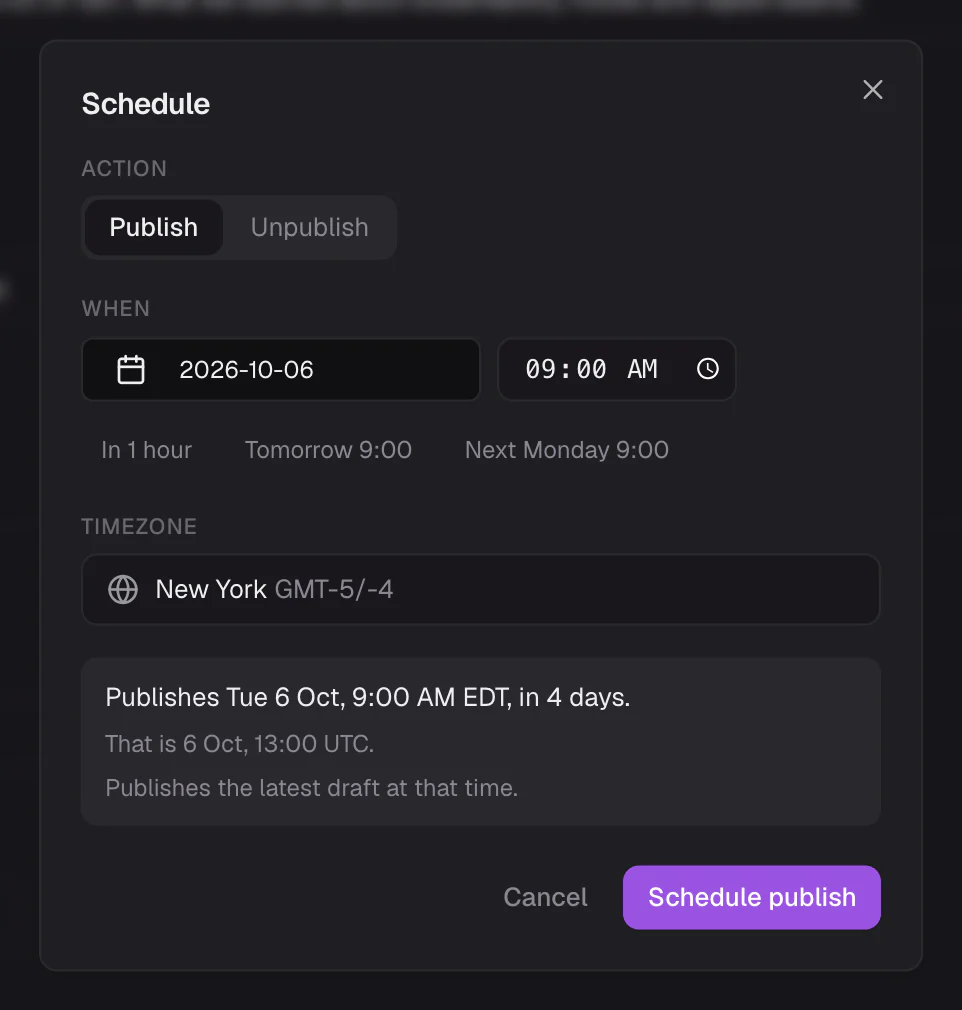
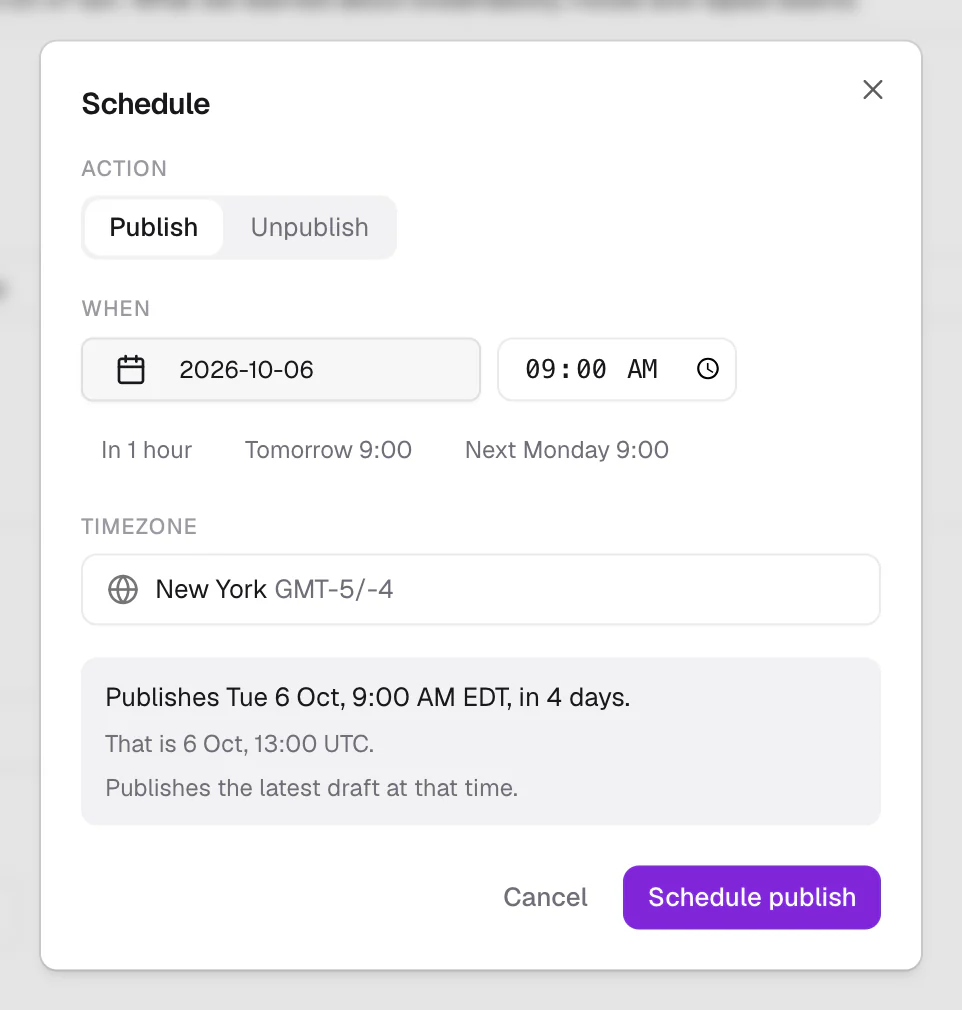
The dialog spells out the result before you confirm, such as "Publishes Tue 6 Oct, 9:00 AM EDT, in 4 days.", with the time in UTC and in your own zone.
If the entry has unsaved changes, the button reads Save and schedule: it saves them first.
What gets published
The latest saved draft at the scheduled time, not the version you had when you scheduled. Fix a typo after scheduling, save, and the fix goes out too.
The rules
- The time must be at least a minute ahead.
- An entry can have one scheduled publish and one scheduled unpublish. Scheduling a second publish replaces the first, and the dialog tells you so.
- One schedule can cover up to 500 entries.
- If you discard an entry's draft changes, its scheduled publish is cancelled.
Daylight saving
A time that does not exist, such as 02:30 on the night clocks go forward, moves forward to the first real time: 03:30. A time that happens twice, on the night clocks go back, uses the first one. Capa tells you when either happens.
Change or cancel a schedule
On the entry's status line, choose Change to pick a new time, or Cancel to stop it. The Scheduled tab of the Publish page lists every schedule, soonest first.
If a scheduled publish fails
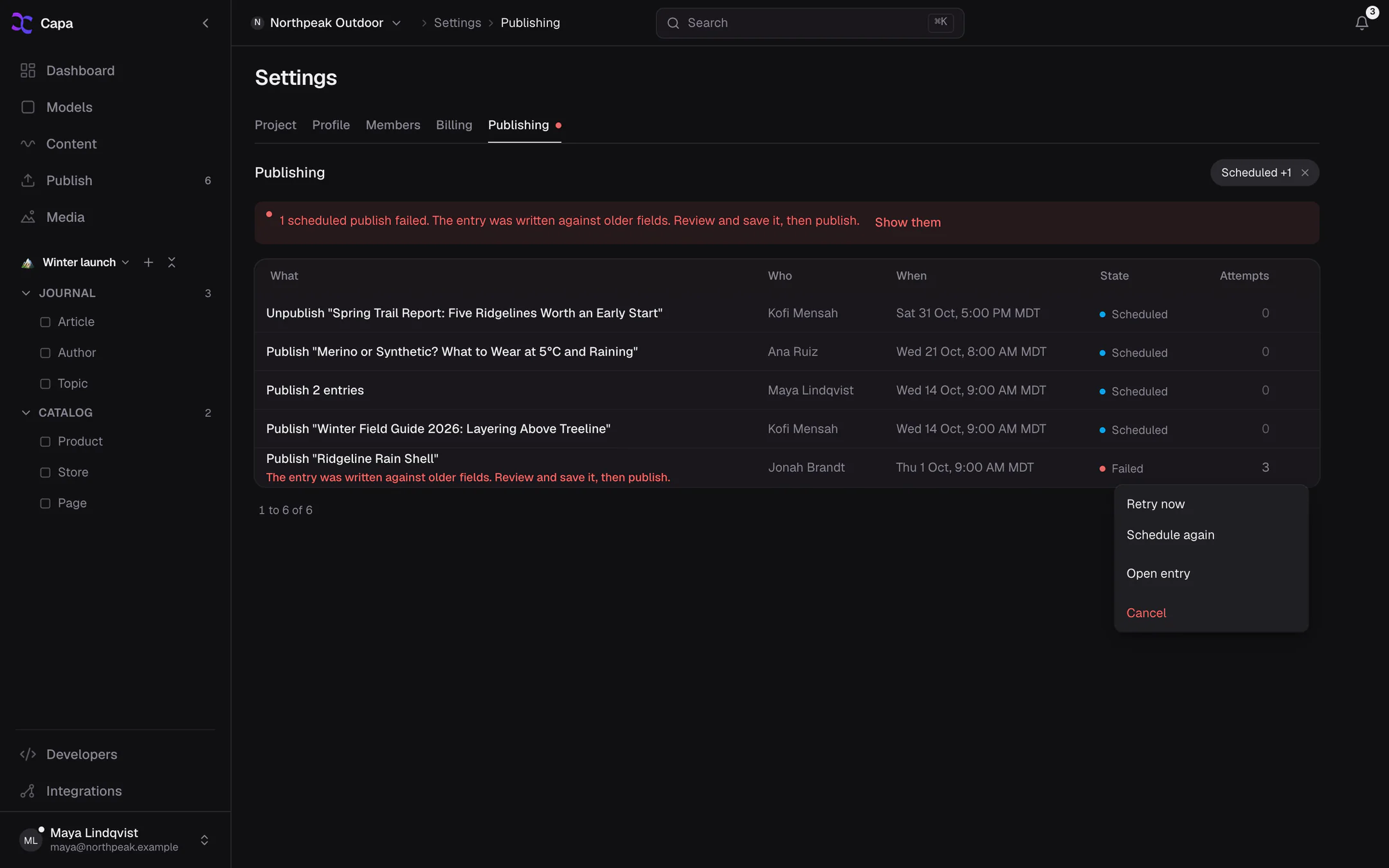
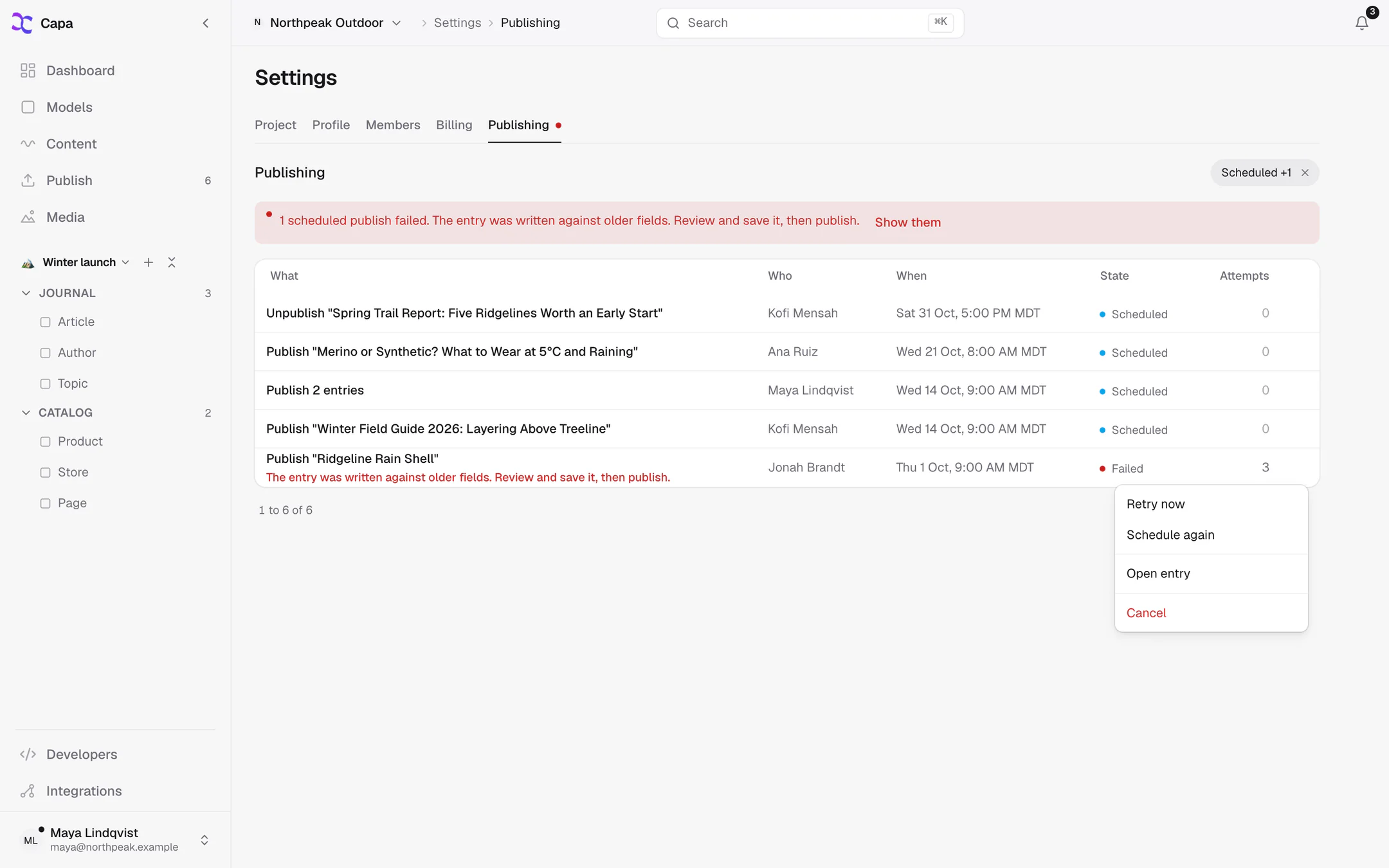
When a failure can be retried, Capa tries again after 1, 5, 30 and 30 more minutes, then stops. A failure shows:
- on the entry's status line, with Try again,
- as a red dot on Settings > Publishing, where Retry now runs it again,
- in the notification bell, with Retry.
Common reasons: the entry was deleted, or a required field is empty.
Schedule an unpublish
Open the entry, then ⋯ and Schedule, and set Action to Unpublish. At that time the entry comes off your site. Use it for offers and announcements that end.
An entry can have a scheduled unpublish and a scheduled publish at once. The status line shows both.
Unpublish
Open the entry, then ⋯ and Unpublish. You can also unpublish from any list: tick the entries and choose Unpublish.
The entry comes off your site at once, and its cached copies are dropped. Nothing is lost: the content becomes a draft again, ready to edit and publish later.
The Publish page
Publish in the sidebar lists every entry with changes waiting. The badge on it counts them.
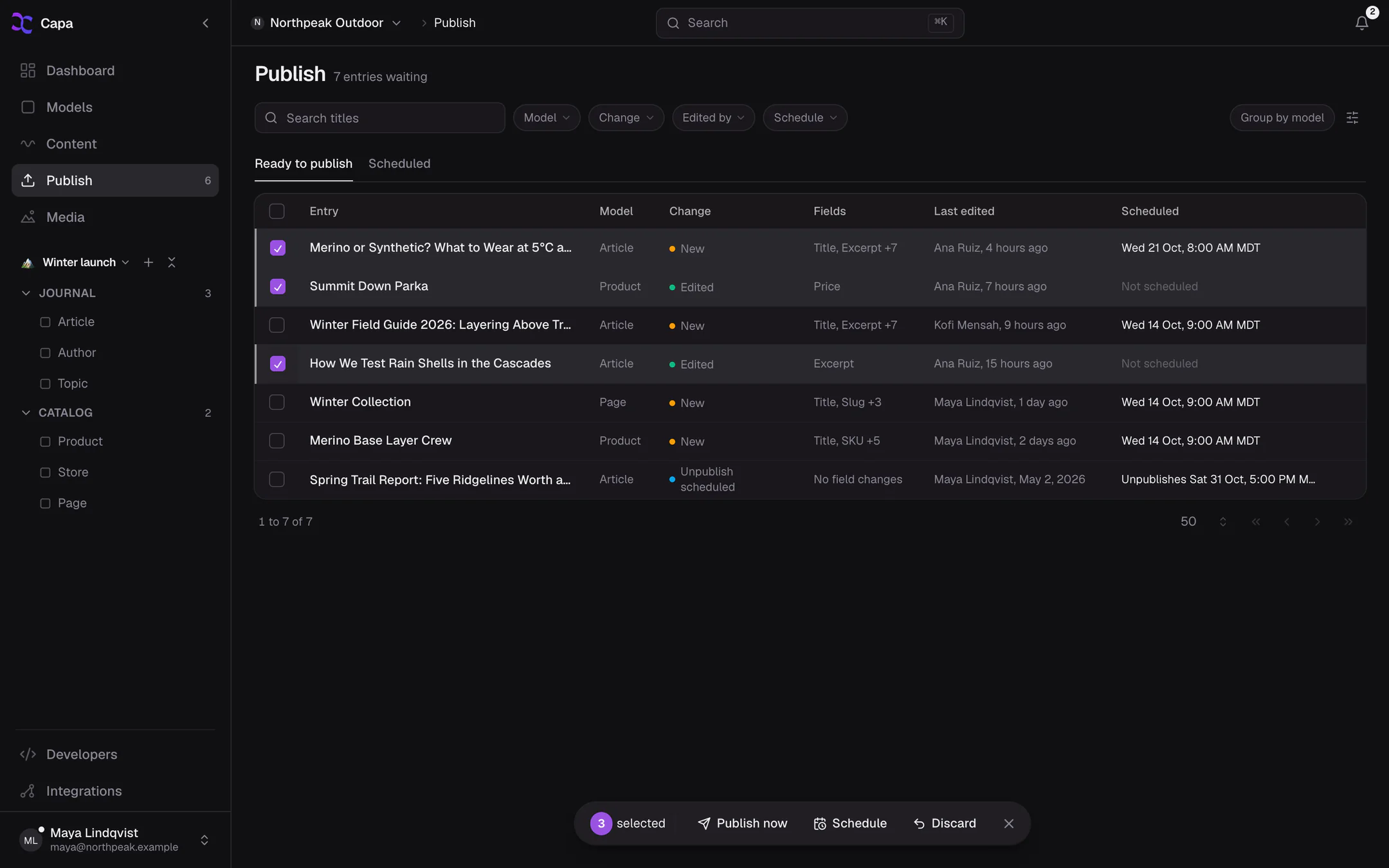
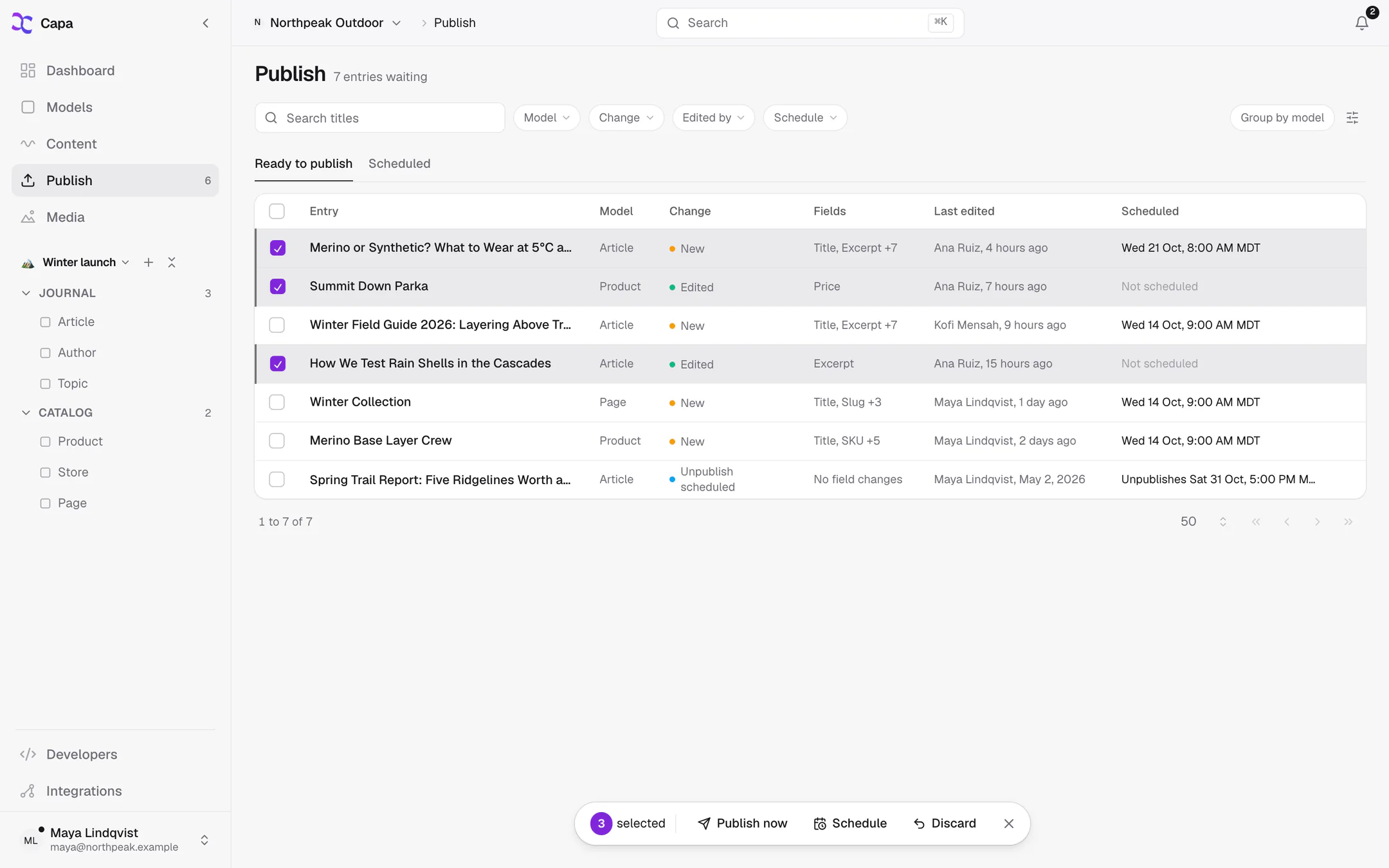
Ready to publish
Each row shows the entry, its model, the kind of change, which fields changed, and who edited it last.
| Change | Means |
|---|---|
| New | Never published, or unpublished since. |
| Edited | Has saved changes that are not live. |
| Unpublish scheduled | Unchanged, but set to come off. |
Filter by Model, Change, Edited by and Schedule, or search titles.
Click a row to see exactly what changed: text is compared word by word, with removed words struck through and added words highlighted. Other fields show Was and Now.
Some rows cannot be published yet, and say why: a required field is empty, or the entry was written against an older version of its model. Open the entry, fix it and save.
Publish, schedule or discard together
Tick rows, or tick the header and choose Select all. Then:
- Publish now publishes them. Rows that cannot be published are left out, and Capa lists them first.
- Schedule sends them all out at one time. Quick picks: Tonight 9 PM, Tomorrow 9 AM, Next Monday 9 AM.
- Discard throws away the draft changes on edited entries. Each goes back to its published version. The discarded drafts stay in the entry's history.
Scheduled
The Scheduled tab lists every schedule, soonest first, grouped as they were scheduled. Each group and each entry has Publish now, Reschedule and Cancel. Cancelling publishes nothing: the entries keep their changes and return to Ready to publish.
Publish all drafts in a model
To publish every waiting entry of one model, open the model's ⋯ menu, on its entries page or in Models, and choose Publish all drafts.
- Narrow it down if you need to, by Folder, Tags, Updated since or Title contains.
- Read the count. Capa says how many are ready, and which are left out and why.
- Choose Publish N, or Schedule instead to pick a time.
More than 50 entries publish in the background. A progress pill shows how far it has got, and a message says when it is done.
Publish from a list
In Content or a model's entries, tick rows and choose Publish, Unpublish or Schedule in the selection bar.
Publish from a list does not check required fields. To be sure every entry is complete, publish from the Publish page, which skips incomplete entries.
Settings > Publishing
Settings > Publishing is the record of everything scheduled and published in the project: what, who, when, and how it went.
Filter by state: Scheduled, Running, Done, Failed, Failed, gave up or Canceled. Each row's menu can reschedule, publish now, retry, or cancel it. Cancelling a failure is how you mark it handled.
Related
- Drafts and publishing: what each key sees.
- Entries: create, edit and delete.