 Capa
CapaEntries
Find, create, edit, duplicate and delete entries, and work with linked entries and images.
An entry is one piece of content: one article, one product, one page. This page covers everything you do with entries short of publishing them. For that, see Publishing.
Find entries
Content in the sidebar lists every entry in the project.
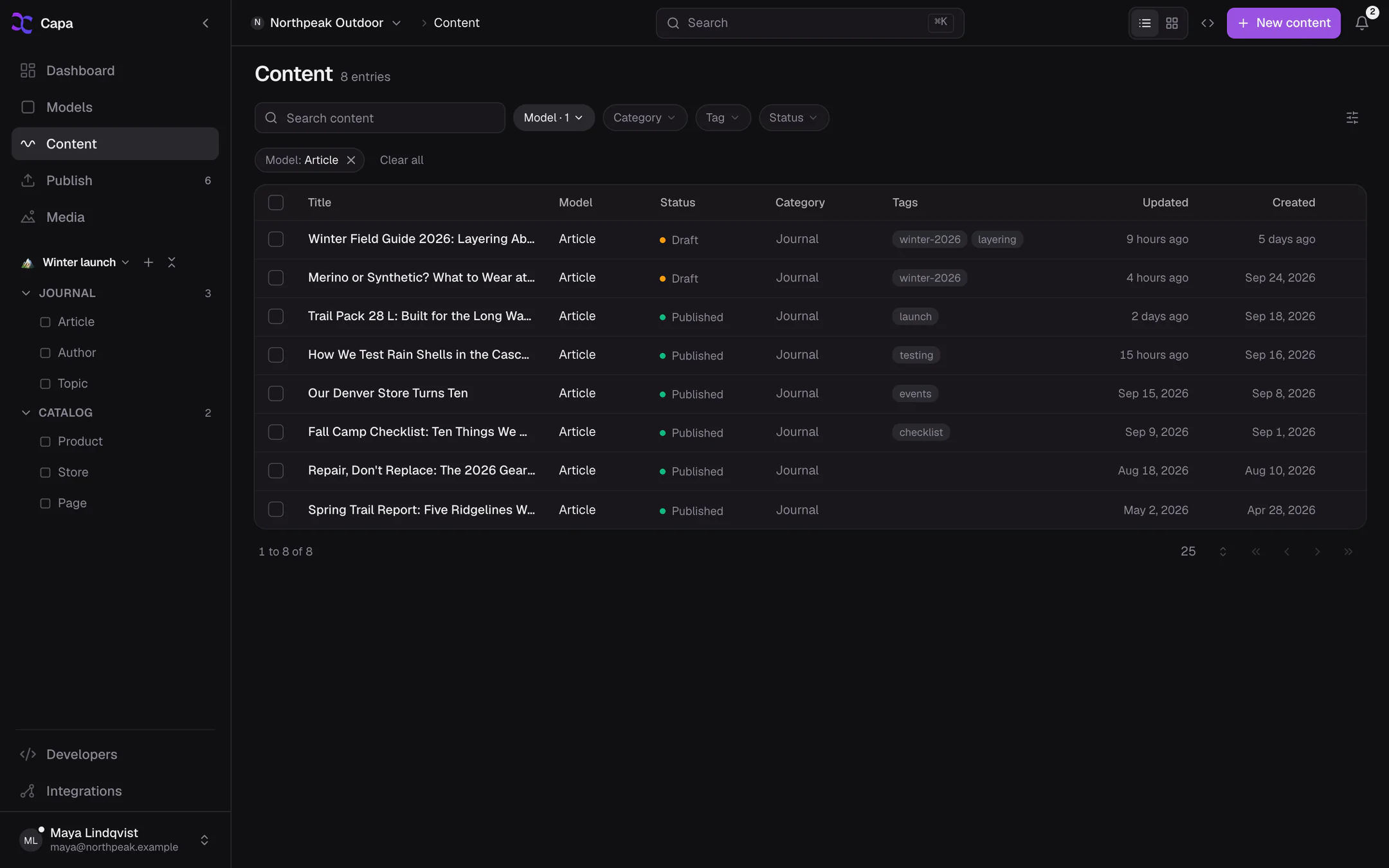
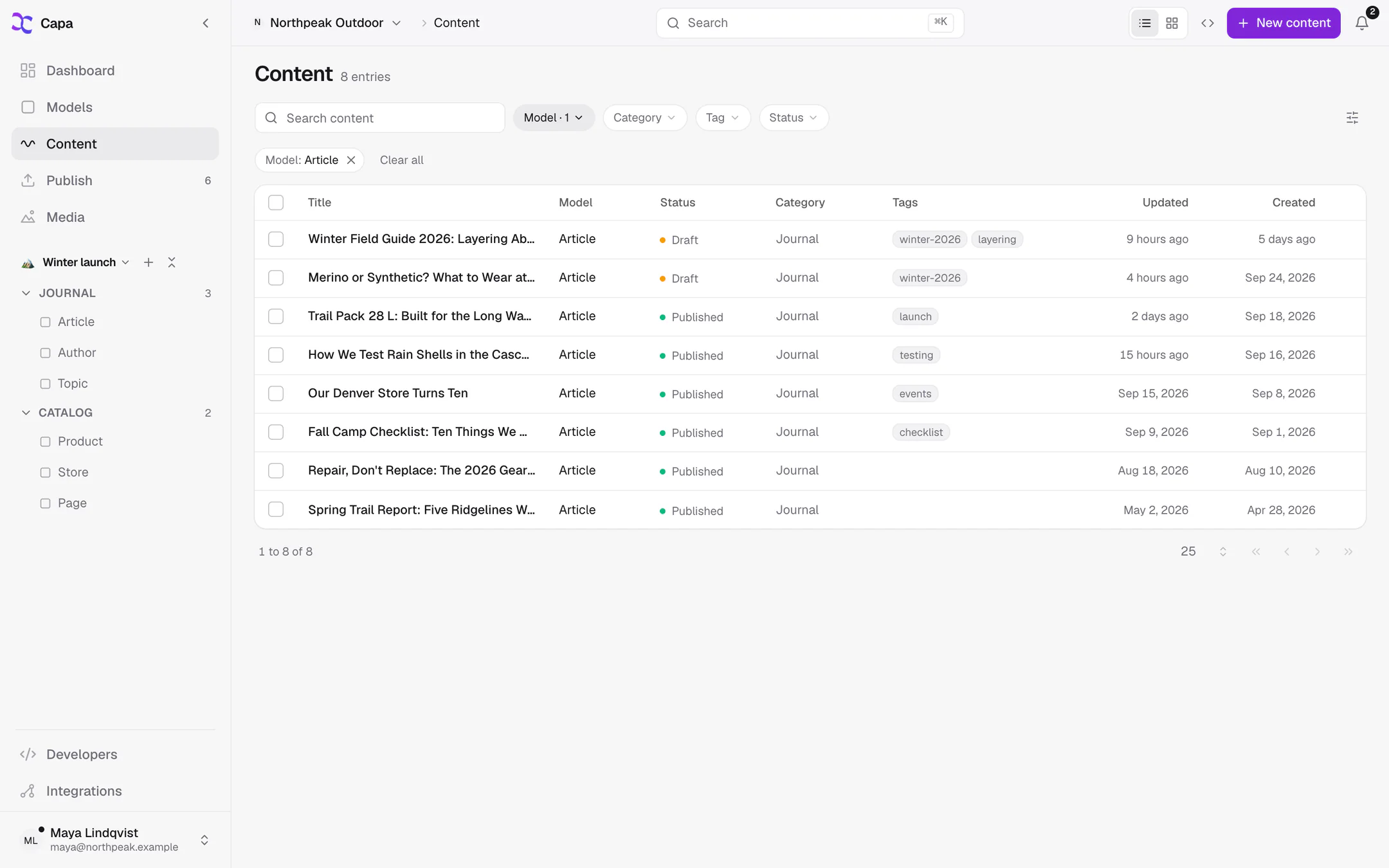
- Search content finds entries as you type.
- Model, Category, Tag and Status narrow the list. Clear all removes every filter.
- Click a column header to sort by it.
- Switch between List view and Grid view at the top right.
- Choose how many rows a page shows at the bottom: 25, 50, 100 or 250.
To see one model's entries, open the model from Models, or set the Model filter. A model's own list adds a Published column and a finer Status filter: Published, Published with draft and Draft.
| Status | Means |
|---|---|
| Draft | Never published. Your site cannot see it. |
| Published | Live, and the live version is the newest. |
| Published, draft ahead | Live, with saved changes that are not live yet. |
| Scheduled | Set to publish or unpublish at a time. |
Create an entry
- In Content, choose New content, then pick the model. In a model's own list, choose New entry.
- Fill in the fields. Fields marked as required must have a value.
- Choose Save draft to keep it private, or Publish to put it live.
A model that holds a single entry, such as site settings, has no New entry button. Open its one entry instead.
If a required field is empty, Capa says how many fields need fixing and opens the cards that hold them.
Edit an entry
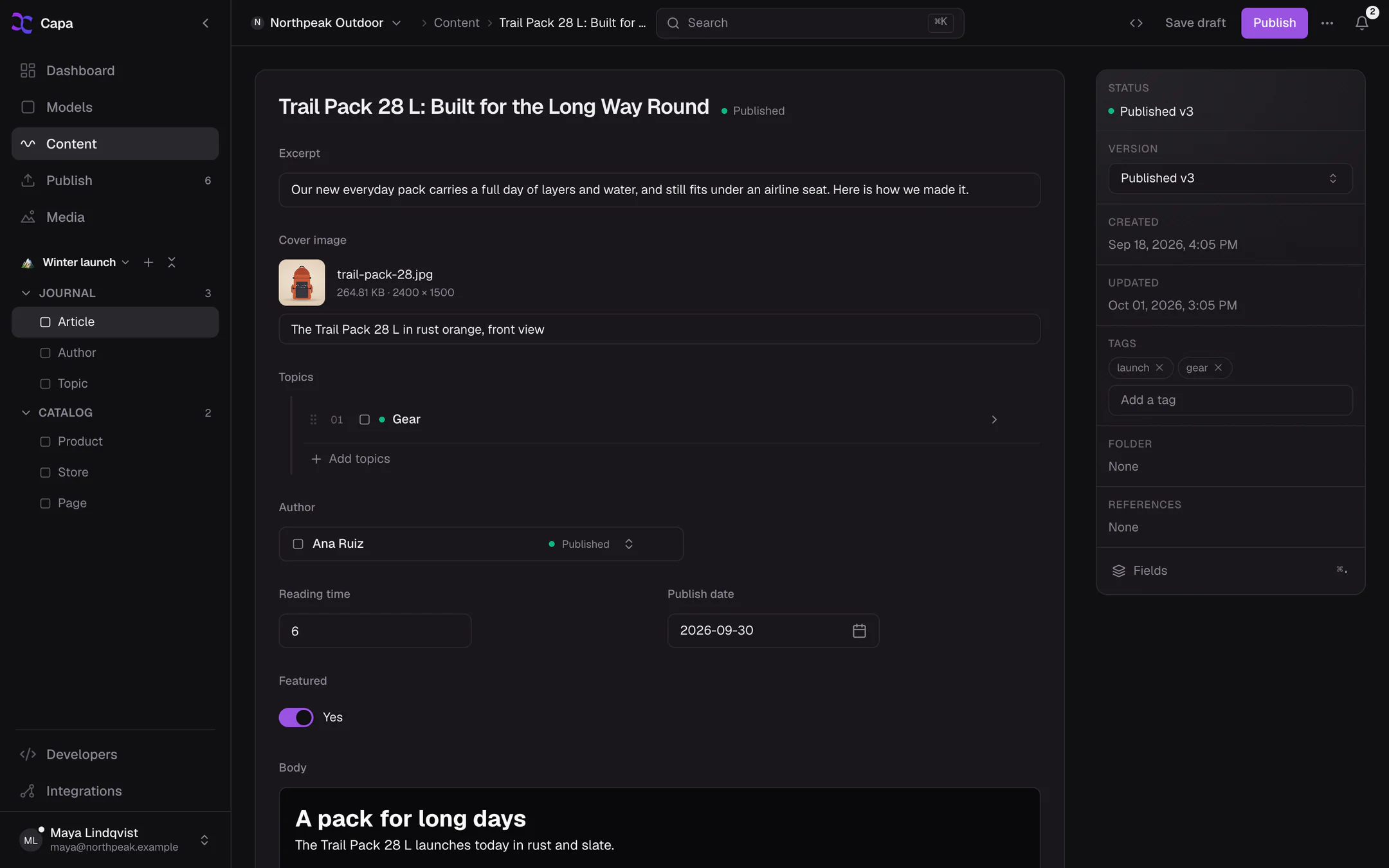
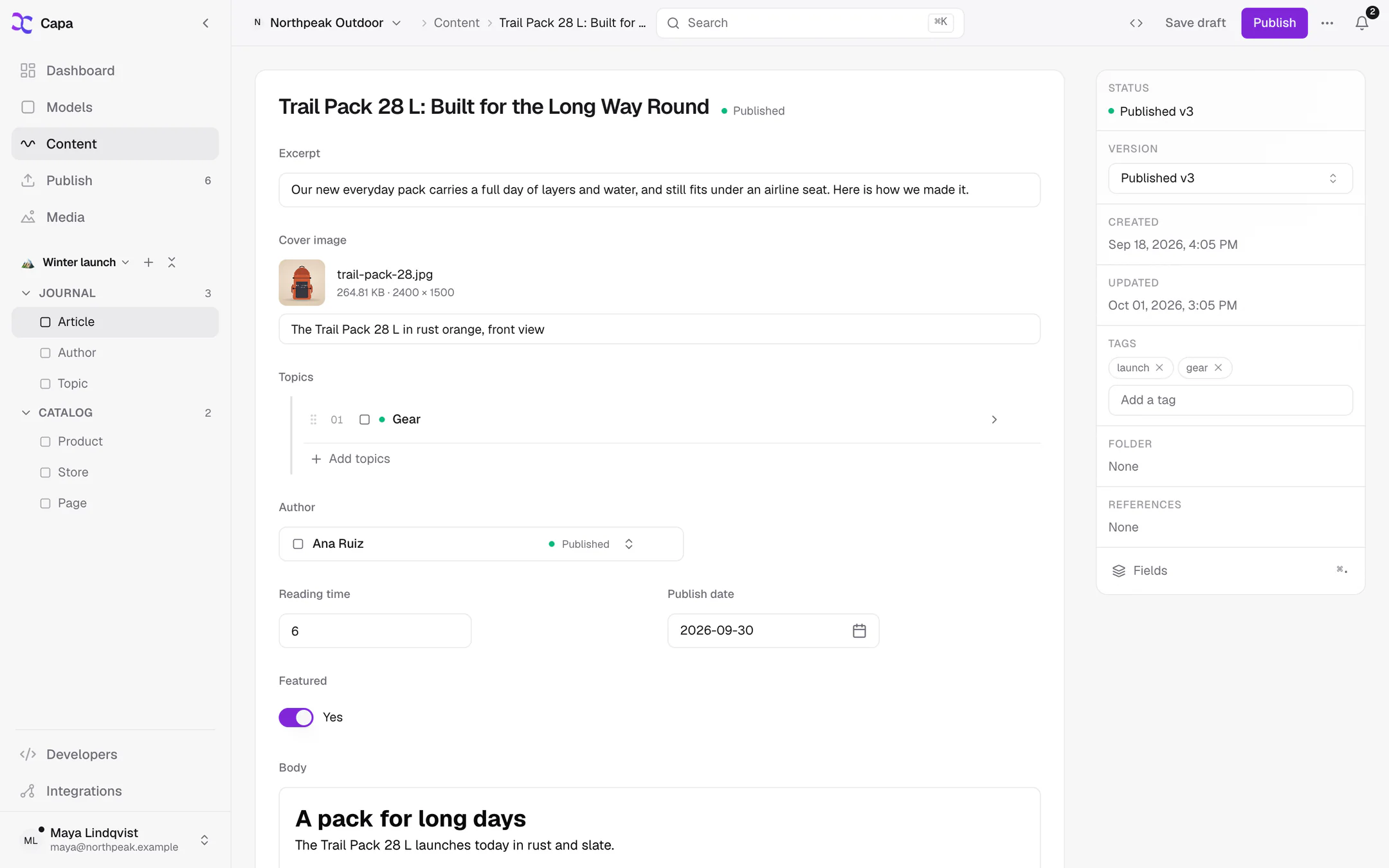
Open it from any list. Its fields are grouped in cards, in the layout your developers designed.
Capa does not save as you type, and has no save shortcut. Choose Save draft when you are done. If you leave with unsaved changes, Capa asks: Save, Discard or Keep editing.
The details panel
The panel beside the fields shows the entry's facts. On a narrow screen, open it with the Entry details button.
| Row | What it shows |
|---|---|
| Status | Draft, published, or scheduled, with Change and Cancel for a schedule. |
| Version | Every saved version. Pick one to see it. |
| Created, Updated | When the entry was created and last saved. |
| Tags | The entry's tags. Type and press Enter to add one. |
| References | Other entries that link to this one. |
Tags save at once, separately from Save draft.
Older versions
Every save is kept. Choose a version under Version to see the entry as it was then. There is no restore button: to bring something back, copy it from the older version into the current one and save.
Linked entries
A field that links to another entry, such as an article's author, shows Choose a… with the model's name.
- Pick from the list, or search it.
- Create a new entry opens a side panel where you write the new entry without leaving this one. Save or publish it there.
- Click a linked entry to open it in a side panel. You can stack up to four.
- Change entry swaps the link. Clear removes it.
If the linked entry was deleted, Capa clears the link shortly after the delete. Until then the field says Missing entry.
Images and files
An empty image, video or file field shows Drop a file or browse. Click it to open the media library, then pick a file or upload a new one.
Once a file is chosen, its menu offers Replace, Upload new, Copy URL, Open and Clear. An image also has an Alt text box: describe the image for people who cannot see it.
The alt text is copied from the media library when you pick the file. Editing it here changes it for this entry only. See Media.
Duplicate an entry
- In the entry, open ⋯ and choose Duplicate. The copy is a new draft with exactly what is on screen, unsaved changes included, and opens straight away.
- In a list, choose Duplicate in the row's menu. The copy is a new draft of what was last saved.
Tags are not copied.
Delete an entry
Open the entry, choose ⋯, then Delete, and confirm. In a list, Delete is in each row's menu and in the selection bar, for admins and developers.
Capa then removes it from every entry that linked to it, in drafts and in the live version.
Work on many entries at once
Tick the rows you want. A bar appears with N selected and the actions:
| Action | Does |
|---|---|
| Publish, Unpublish, Schedule | See Publishing. |
| Add to workspace, Group into folder | Add shortcuts to the sidebar. Nothing moves. |
| Copy IDs | Copy the entries' ids, for a developer. |
| Duplicate | In a model's own list. |
| Delete | Admins and developers. |
The header checkbox selects the current page. On a phone, choose Edit to start selecting.
Share a link
Every entry has its own address, built from its model and title, such as …/content/article/winter-field-guide-2026-layering-above-treeline-3f9c1a7b. Copy it from the browser. It keeps working after the entry is renamed.
Related
- Publishing: publish, schedule and unpublish.
- Navigating the admin: search and the sidebar.
- Layout builder: how the editor's cards are designed.