 Capa
CapaLayout builder
Design the entry editor your team uses, with cards, two columns, field widths and related entries edited in place.
A model's layout decides how its entries look in the editor: which fields sit together, in which column, at what width. It changes nothing about the content or the API. It only changes the screen your editors work in.
There is one layout per model, and everyone in the project sees it. You need the Admin or Developer role to change it.
Open the builder
The builder is the field-editing mode of the entry editor, on a computer or tablet. Open it any of these ways:
- On Models, open the model's ⋯ menu and choose Edit fields.
- In any entry of the model, choose Fields in the details panel.
- In any entry, press ⌘. (Ctrl+.).
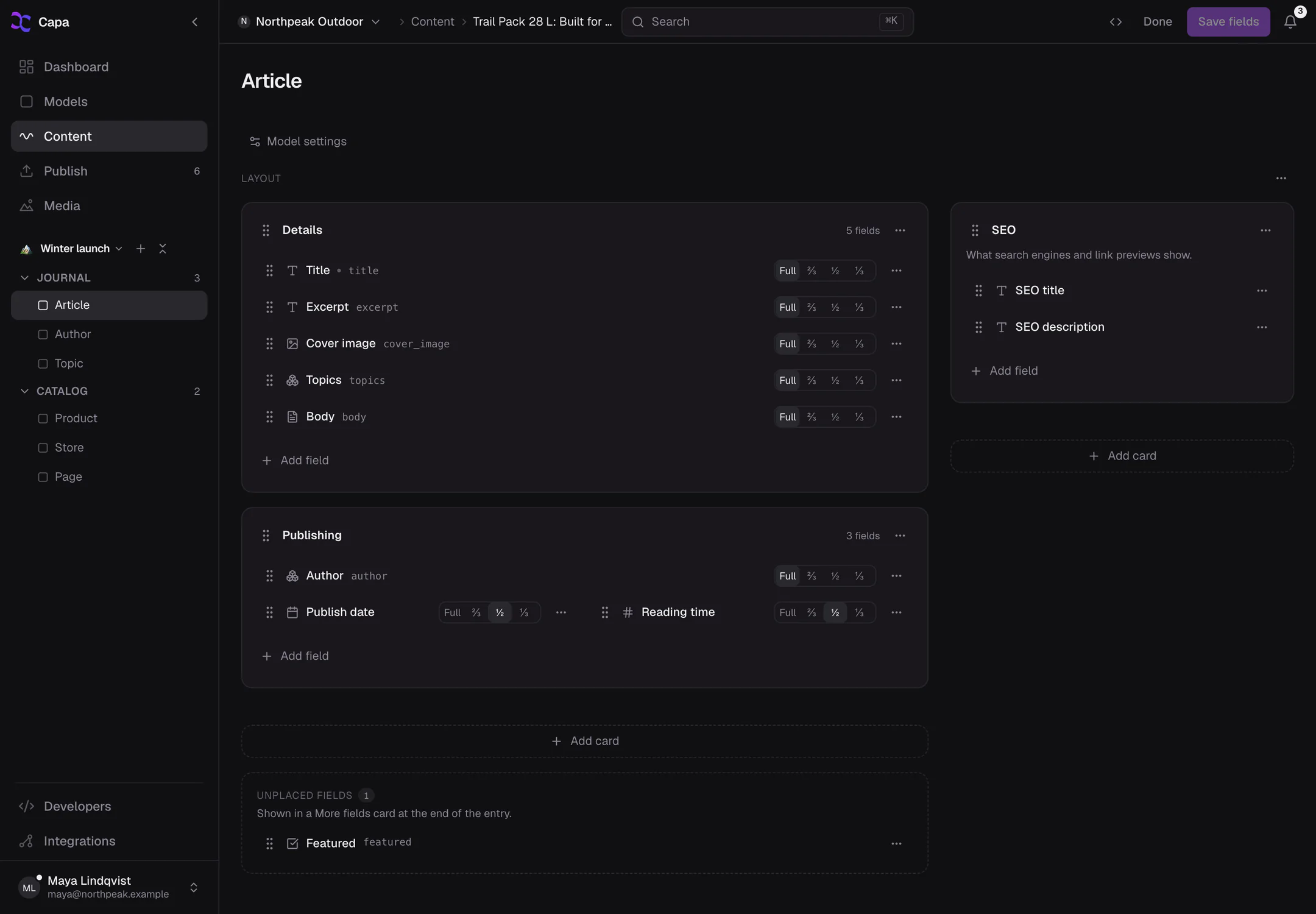
On a phone, field-editing mode is a simple list where you reorder fields. Design the layout on a larger screen.
Cards
Fields sit in cards: titled groups, such as "Details", "Publishing" or "SEO". A new model has one card, Details, holding every field.
- Add a card with Add card at the end of a column.
- Add a field with Add field at the end of a card, then pick a type.
- Move a field by dragging it, or with Move to… in its menu.
Each card's menu has:
| Item | Does |
|---|---|
| Rename | Changes the card's title, up to 80 characters. |
| Add description | A line of help under the title, up to 200 characters. |
| Collapsible, Start collapsed | Lets editors fold the card away, and whether it starts folded. |
| Move up, Move down, Move to side column | Reorders the card. |
| Remove card | Removes the card. Its fields move to Unplaced fields. Nothing is deleted. |
A layout can have up to 50 cards.
Two columns
Each layout has a main column and a narrower side column. The side column suits short fields that editors check rather than write: a status, a category, a publish date.
The columns sit side by side on wide screens and stack on narrow ones.
Field widths
In the main column, a field can take the whole row or part of it: Full, ⅔, ½ or ⅓. Put a short field beside another, such as a first and last name at ½ each.
Fields in the side column always take its full width.
Unplaced fields
A field you take out of every card, with Remove from card, goes to Unplaced fields. It is not deleted. Editors still see it, in a More fields card at the end of the entry.
Related entries in place
A Model field that links to other entries has a Display setting in the builder:
| Display | Editors see |
|---|---|
| Picker | A link to the related entry, which they edit in its own editor. |
| Inline | The related entries as rows inside this card, each expanded to edit in place. |
| Embedded | The related entry's own fields, inside this card. |
With Inline, choose what editors may do: Create new, Remove (unlink) and Reorder. Summary fields picks up to three fields to show on each row.
Inline is not offered in the side column. Entries shown in place can nest two levels deep.
Save
Save fields in the top bar saves the fields and the layout together. Discard throws away layout changes since the last save.
If you leave with unsaved changes, Capa asks whether to save them.
Copy a layout between models
The Layout menu at the top of the builder has:
- Copy layout JSON and Paste layout JSON, to reuse a layout on a similar model.
- Reset to linear, which removes the cards, widths and display settings and goes back to one column. Fields and content are not touched. It takes effect when you choose Save fields.
Related
- Build a model: fields and relations.
- Entries: what editors do in the result.