 Capa
CapaNavigating the admin
The sidebar, workspaces and folders, search, notifications and keyboard shortcuts.
The admin has three places to look: the sidebar on the left, the top bar, and the page itself. This page covers how to move around and how to arrange the sidebar for your team.
The sidebar
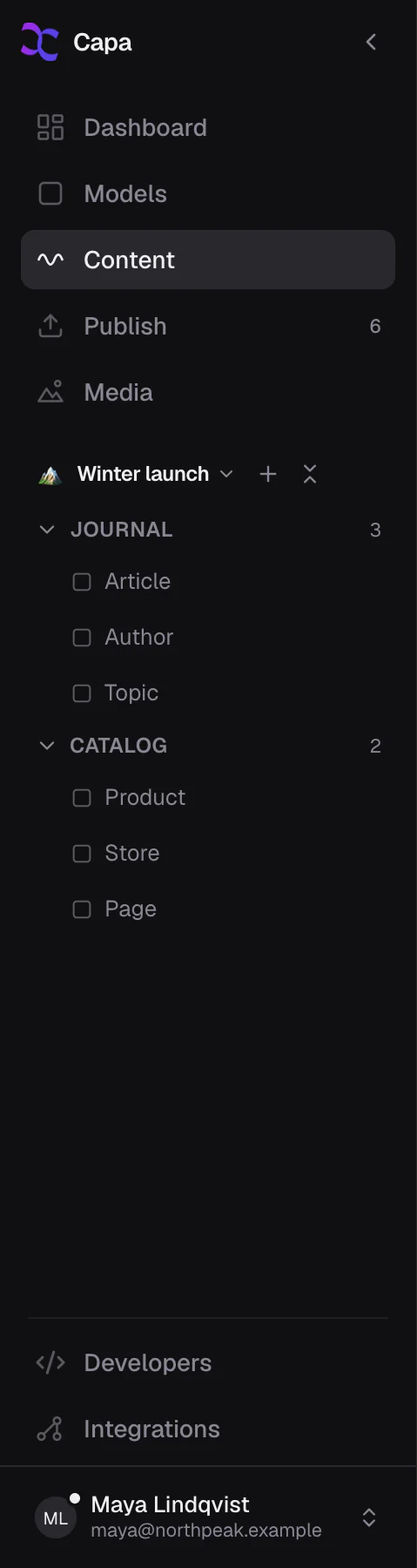
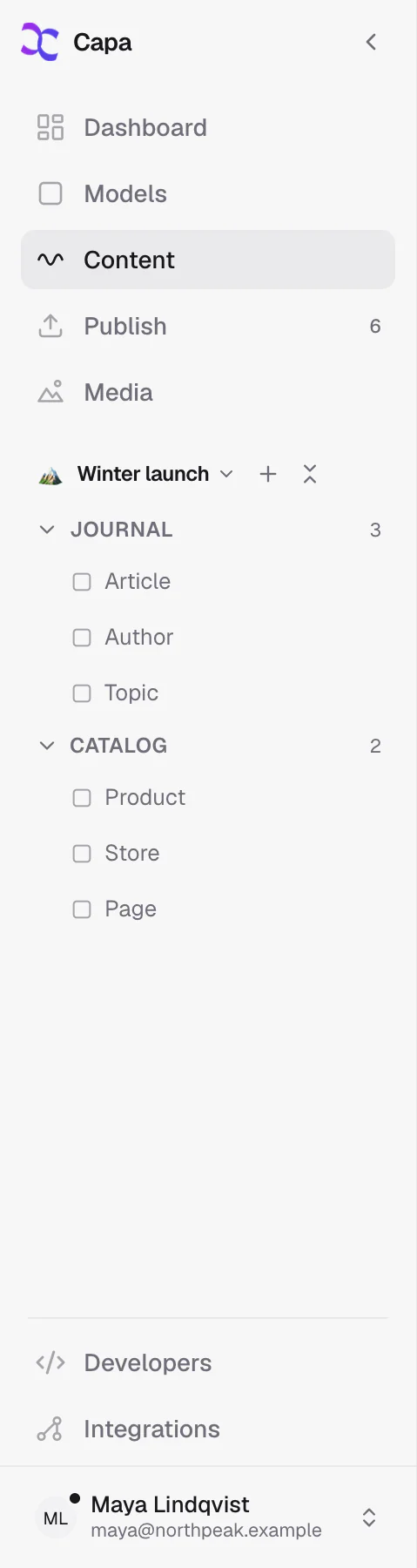
| Item | What is there | Who sees it |
|---|---|---|
| Dashboard | Counts, recent updates, and what is scheduled. | Everyone |
| Models | The project's content types. | Everyone |
| Content | Every entry, of every model. | Everyone |
| Publish | Entries with changes waiting to go live. The badge counts them. | People who can publish |
| Media | Images, videos and documents. | Everyone |
| Developers | Keys, the API explorers, request logs, the cache and webhooks. | Everyone, with tabs by role |
| Integrations | Connected services, such as Shopify. | Admins and developers |
Below the main items is your workspace: folders and shortcuts your team arranges. At the bottom is your account.
Collapse the sidebar with the arrow at its top, or press ⌘B (Ctrl+B on Windows).
Workspaces
A workspace is an arrangement of the sidebar: folders, and shortcuts to the models, entries and media folders you use most.
Nothing in a workspace moves or changes your content. Removing a folder or a shortcut never deletes an entry.
Team and private
| Kind | Who sees it |
|---|---|
| Team | Everyone in the project. Anyone who can edit can arrange it. |
| Private | Only you. Arrange it however you like. Nothing you do there moves for anyone else. |
Switch workspaces with the name at the top of the tree. An admin picks the project's default workspace, the one people see when they first arrive.
Make a workspace
- Open the workspace switcher and choose New workspace.
- Give it a name, and choose Team or Private.
- Pick a template: Blank, Website (Pages, Components, Settings and Media folders) or Catalog (Products, Collections and Assets).
- Choose Create.
To rename it, change its icon or visibility, duplicate it or delete it, choose Manage workspace… in the switcher. Only the person who made a workspace, or an admin, can change it.
Folders
- Add a folder with the + beside the workspace name. It arrives named "New folder", ready to rename.
- Nest folders with New folder inside in a folder's menu.
- Rename by double-clicking, or with F2.
- Remove a folder from its menu. What was inside moves up a level.
Clicking a folder opens and closes it.
Shortcuts
Drag a row from Content, a model's entries or Models into the tree. Drop it on a folder to file it there, or on another shortcut to group both in a new folder.
Or select rows in a list and choose Add to workspace or Group into folder in the selection bar.
To show media folders, choose Add media folders… in a folder's menu and pick them.
In a team workspace, you can pin a model only if you can edit models. Anyone who can edit entries can pin entries.
Search
Press ⌘K (Ctrl+K), or choose Search in the top bar. Type to search models, entries, saved queries, people and media at once. Results are grouped by kind.
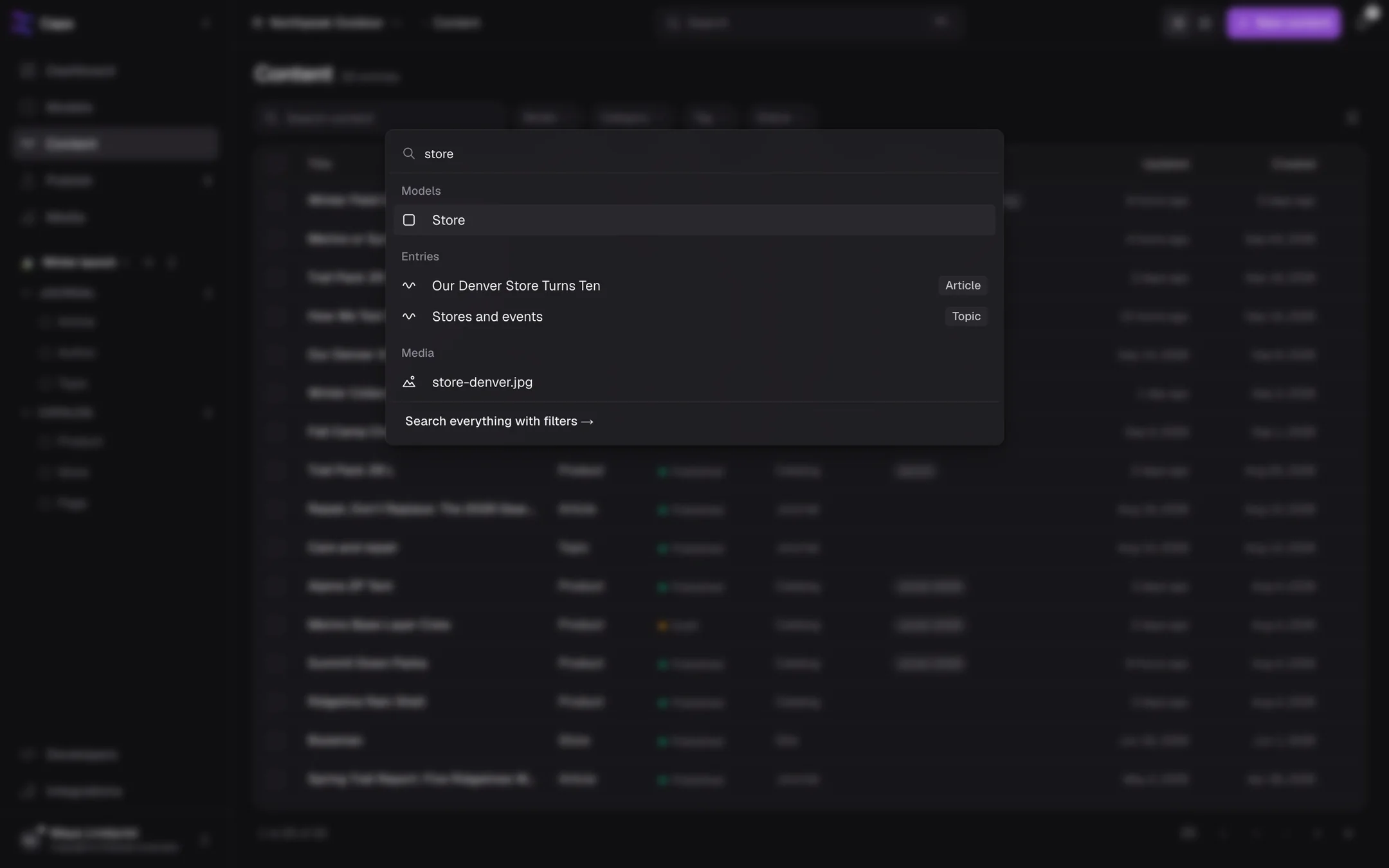
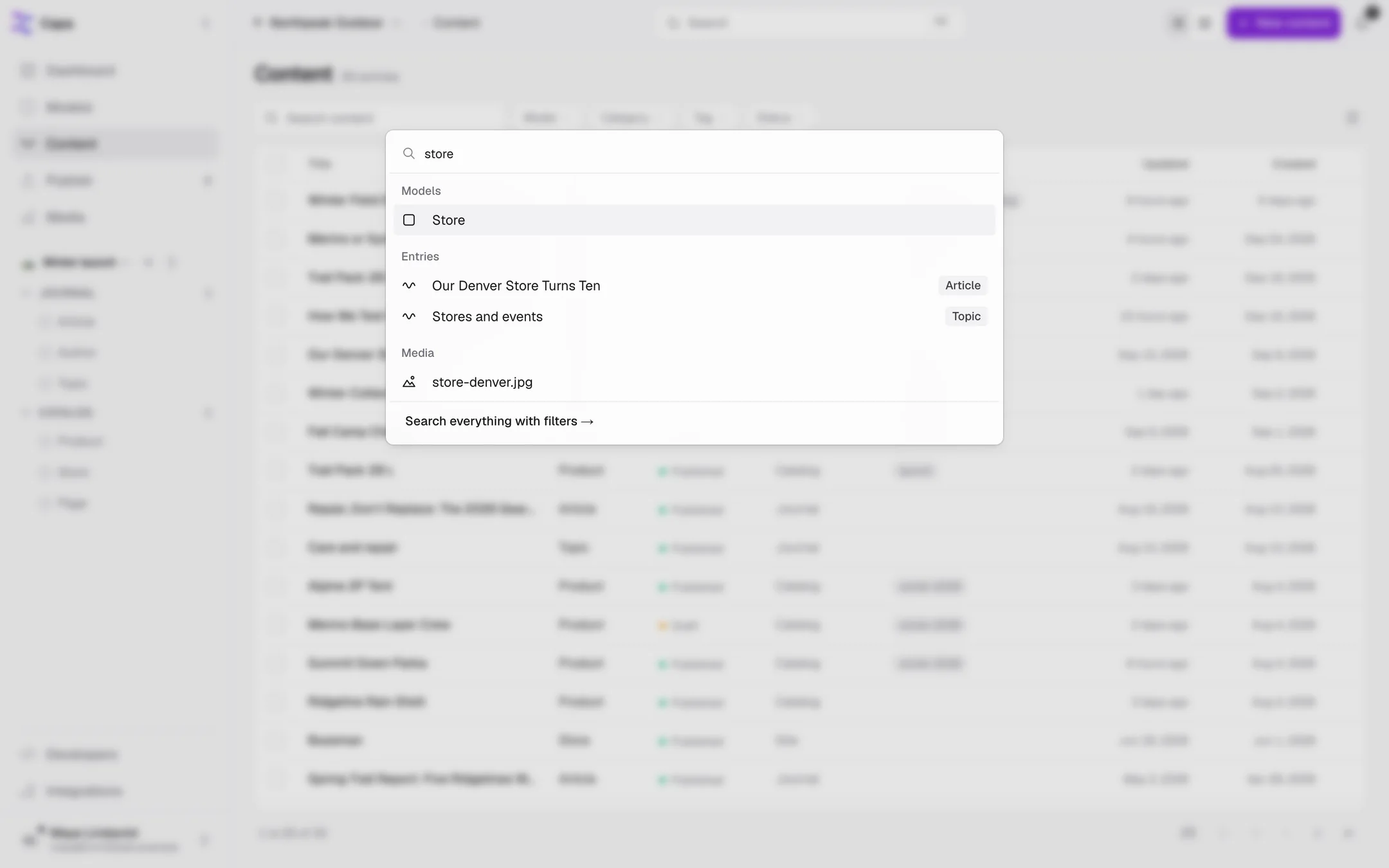
For more control, choose Search everything with filters at the bottom. The search page filters by type, model, category, folder and date, and sorts by relevance or date.
Notifications
The bell in the top bar shows what happened in the last 7 days:
- Needs attention: a scheduled publish that failed, with Retry.
- Activity: entries and batches published, and invitations waiting.
- What's new: the latest change to Capa itself.
Items are marked read after the menu has been open for a moment. Mark all read clears them at once.
Your account
Open the account menu at the bottom of the sidebar for:
- Profile: your name and picture.
- Settings: the project's settings.
- What's new: every recent change to Capa.
- Theme: Light, Dark or System.
- Keyboard shortcuts and Log out.
Keyboard shortcuts
| Keys | Does |
|---|---|
| ⌘K / Ctrl+K | Open search |
| ⌘B / Ctrl+B | Collapse or expand the sidebar |
| Esc | Close the open panel, or clear a selection |
| ⌘. / Ctrl+. | Edit the fields of the entry's model. Admins and developers. |
| Space | Select the focused row in a list |
| ↑ ↓ ← → | Move through the workspace tree |
| ⌘↑ / ⌘↓ | Move a tree row up or down |
| F2 | Rename the focused folder |
| ← →, + − | In the media viewer: previous and next file, zoom |
There is no save shortcut. Use Save draft in the top bar.
On a phone
The sidebar becomes a tab bar along the bottom: Dashboard, Content, Models, Media and Account. Account holds the project switcher, your workspace, Publish, Developers, settings and the theme.
You can read your workspace on a phone. Arrange it on a computer.