 Capa
CapaMembers and roles
Invite people to a project, choose their role, and see exactly what each role can do.
Each person in a project has one role. The role decides what they can see and change. Someone can belong to many projects, with a different role in each.
The roles
| Role | For |
|---|---|
| Admin | Running the project: members, billing, settings, and everything a developer can do. |
| Developer | Building the site: models, keys, webhooks, integrations, and all content. |
| Content | Writing and publishing: entries, media and workspaces. |
| Viewer | Reading: everything visible, nothing changed. |
One person is also the owner, marked with a crown on the Members page. The owner can do everything, and is the only one who can transfer ownership or delete the project. The person who creates a project is its owner, with the Admin role.
What each role can do
| Action | Viewer | Content | Developer | Admin | Owner |
|---|---|---|---|---|---|
| Content | |||||
| Read models, entries and media | Yes | Yes | Yes | Yes | Yes |
| Create, edit and publish entries | No | Yes | Yes | Yes | Yes |
| Schedule publishing | No | Yes | Yes | Yes | Yes |
| Delete entries | No | Yes | Yes | Yes | Yes |
| Upload, edit and delete media | No | Yes | Yes | Yes | Yes |
| Create and rename categories | No | Yes | Yes | Yes | Yes |
| Delete categories | No | No | Yes | Yes | Yes |
| Create, change, publish and delete models | No | No | Yes | Yes | Yes |
| Workspaces | |||||
| See and switch workspaces | Yes | Yes | Yes | Yes | Yes |
| Create, arrange and delete workspaces | No | Yes | Yes | Yes | Yes |
| Set the default workspace, assign workspaces to people | No | No | No | Yes | Yes |
| Developers | |||||
| See request logs, cache and webhooks | Yes | Yes | Yes | Yes | Yes |
| Create, edit, rotate and deactivate API keys | No | No | Yes | Yes | Yes |
| Use the Queries and GraphQL explorers | No | No | Yes | Yes | Yes |
| Add, edit and delete webhook endpoints | No | No | Yes | Yes | Yes |
| Reveal a webhook's signing secret | No | No | No | No | Yes |
| Purge and rewarm the cache | No | No | Yes | Yes | Yes |
| Rebuild the search index | No | No | Yes | Yes | Yes |
| Connect and manage integrations | No | No | Yes | Yes | Yes |
| People and project | |||||
| See members | Yes | Yes | Yes | Yes | Yes |
| Invite people | No | No | Yes | Yes | Yes |
| See and delete pending invitations | No | No | No | Yes | Yes |
| Change roles and remove members | No | No | No | Yes | Yes |
| Rename the project and change its URL | No | No | No | Yes | Yes |
| Manage billing | No | No | No | Yes | Yes |
| Transfer ownership | No | No | No | No | Yes |
| Delete the project | No | No | No | No | Yes |
| Leave the project | Yes | Yes | Yes | Yes | No |
| Edit your own profile | Yes | Yes | Yes | Yes | Yes |
Only the owner can change an admin's role. Nobody can change the owner's role or remove the owner.
Where the admin shows more than you can do
A few controls appear for roles that cannot use them. The table above is what Capa allows:
- Edit role and Remove user show for developers, but only admins and the owner can use them.
- Transfer ownership shows for admins, but only the owner can transfer.
- Leave tenant shows for the owner, who must transfer ownership before leaving. Viewers do not see it: ask an admin to remove you.
- The Invitations tab looks empty for anyone but admins and the owner.
- Delete in an entry's ⋯ menu shows for viewers, who cannot delete.
Invite someone
- Go to Settings > Members.
- Under Invite member, enter their Email address.
- Pick a role.
- Choose Invite.
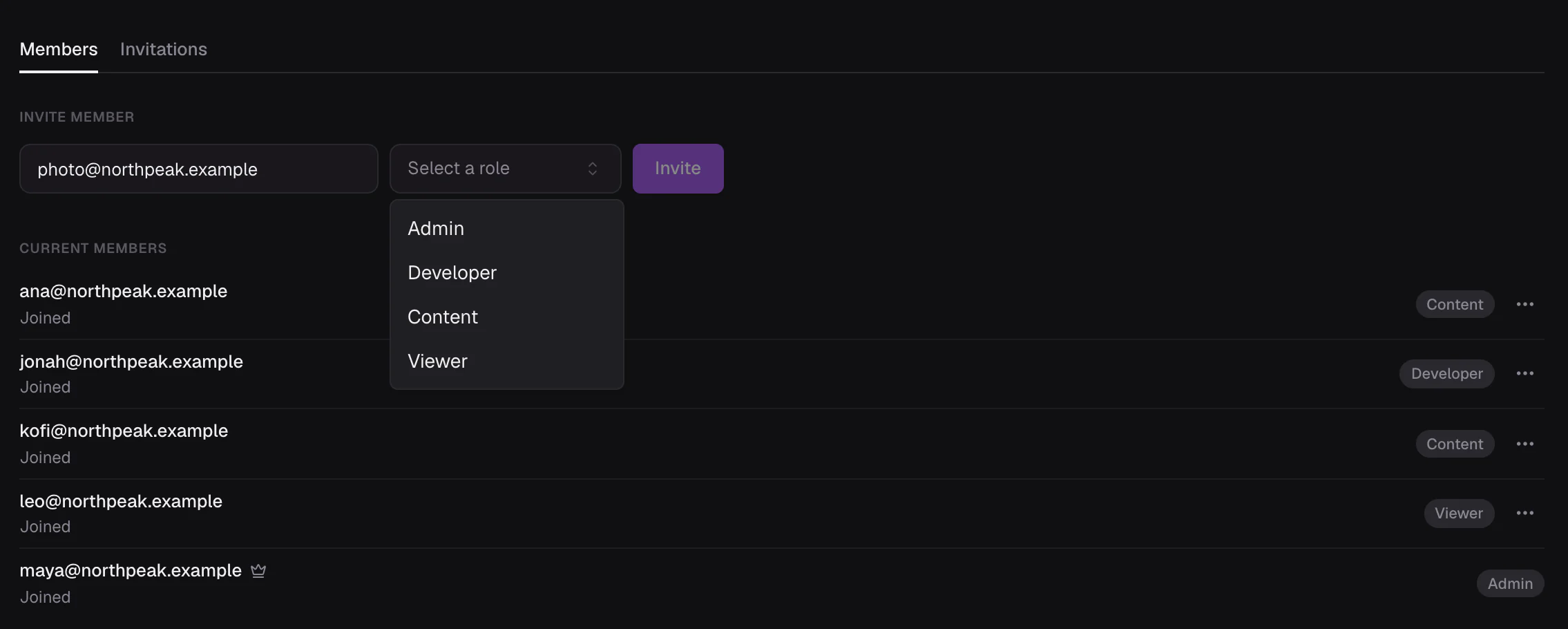
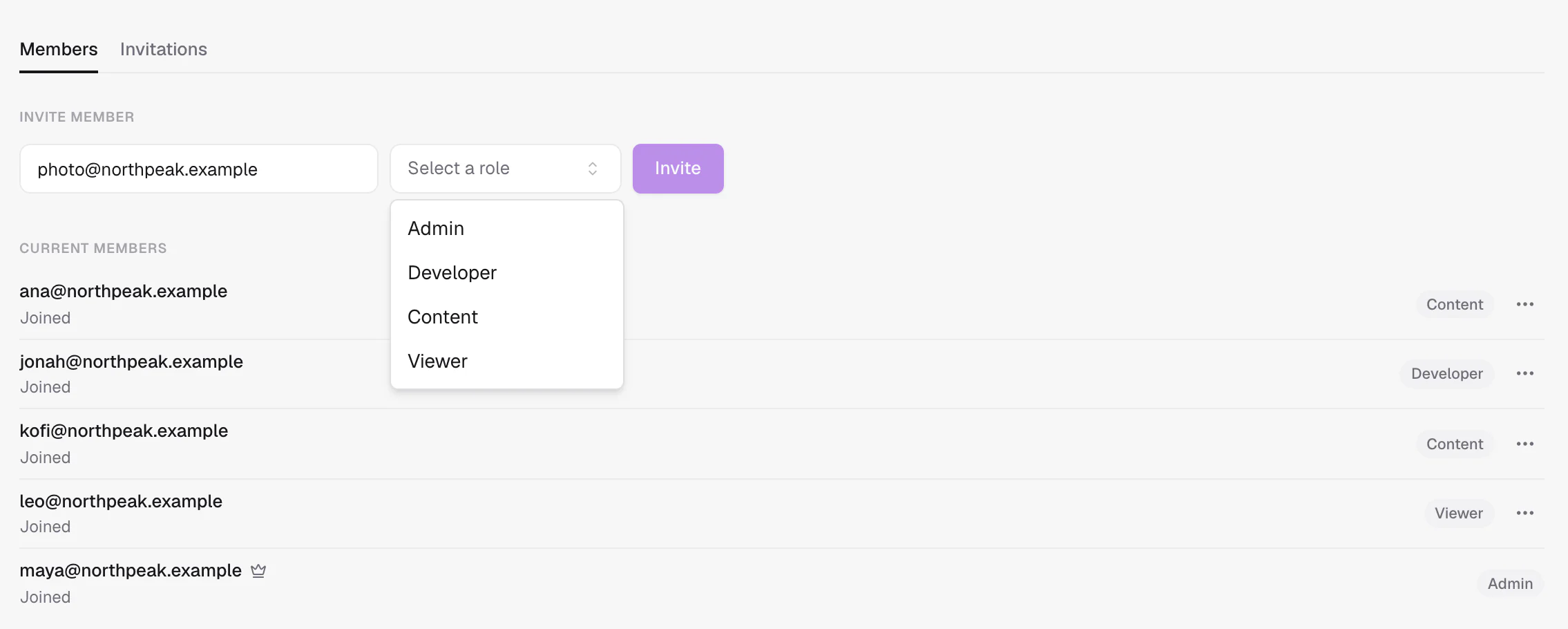
Capa emails them a link. The link works for 7 days.
If the email cannot be sent, Capa says so and offers the link to copy. Send it to them yourself.
Resend or renew an invitation
There is no resend button. Either:
- Invite the same address again. Capa sends a fresh email and a new link, with the role you pick now.
- On the Invitations tab, choose Copy invite link in the invitation's menu. An expired link is renewed for another 7 days. No email is sent.
To cancel an invitation, choose Delete invitation. Its link stops working.
Accepting
The person opens the link:
- New to Capa: they create an account. The email field is filled in and locked to the address you invited.
- Already have an account: they sign in, and land in the project.
- Signed in as someone else: Capa says the invite is for a different account and offers to sign out.
Plan limits
Your plan may limit how many members a project has. Pending invitations count toward it. Some plans offer only the Admin role: on those, everyone is invited as an admin.
Change a role
On Settings > Members, open the person's menu, choose Edit role, pick the new role and choose Update Role. It applies at once.
Remove someone
Open the person's menu and choose Remove user. They lose access to the project at once. Their entries and edits stay.
Transfer ownership
The owner opens the new owner's menu and chooses Transfer ownership. The new owner must already be a member. The old owner stays in the project as an admin.
Leave a project
Choose Leave tenant at the top of Settings > Members, and confirm. The owner must transfer ownership first.
Keys are not people
API keys have their own permissions, chosen when you create them, and are not tied to anyone's role. Removing a member does not touch the keys they made. See Keys.
Related
- Manage projects: create, rename, transfer and delete.
- Agency playbook: roles for a client handover.