 Capa
CapaShopify
Connect a Shopify store and sync its products, collections, pages, blogs and menus into Capa as entries.
Capa can copy your Shopify store's catalogue and content into your project, as entries you read through the same API as the rest of your content. The sync runs one way: from Shopify into Capa.
You need the Admin or Developer role.
Before you start
Capa connects with an Admin API access token from a custom app in your Shopify store.
- In Shopify, go to Settings > Apps and sales channels > Develop apps and create an app.
- Give it read access to what you want to sync: products and collections, online store pages, blogs and articles, and navigation menus.
- Install the app and copy its Admin API access token. It starts with
shpat_.
Keep the token safe. Anyone who has it can read your store's data.
Connect your store
- Choose Integrations in the sidebar, then the Available tab.
- On Shopify, choose Add Integration.
- Enter your Shop Domain, such as
northpeak-outdoor.myshopify.com. Leave outhttps://. - Paste the token into Shopify Access Token.
- Turn on what you want to sync: Product, Collection, Page, Blog, Article, Menu and Menu item.
- Choose Add Shopify Integration.
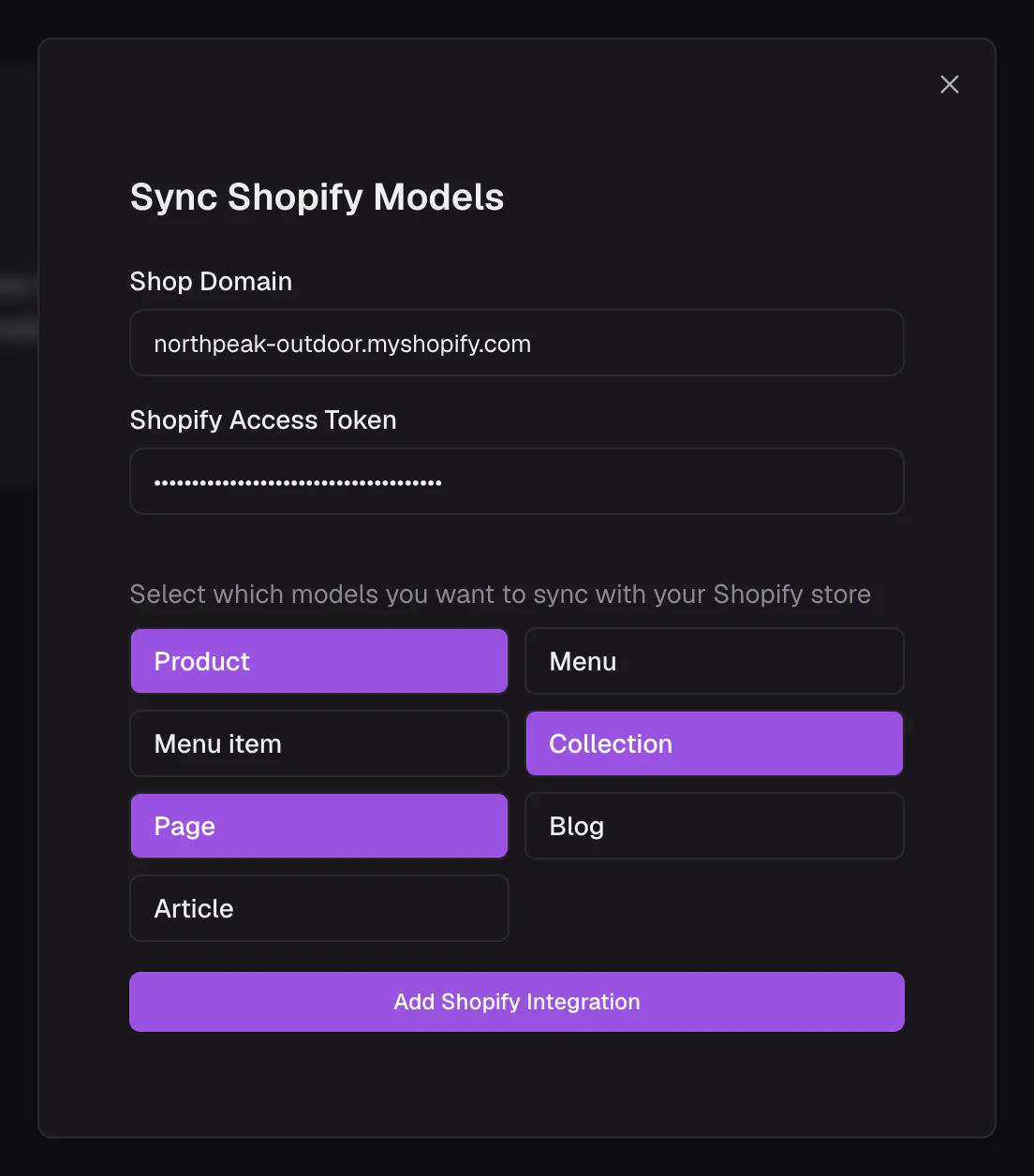
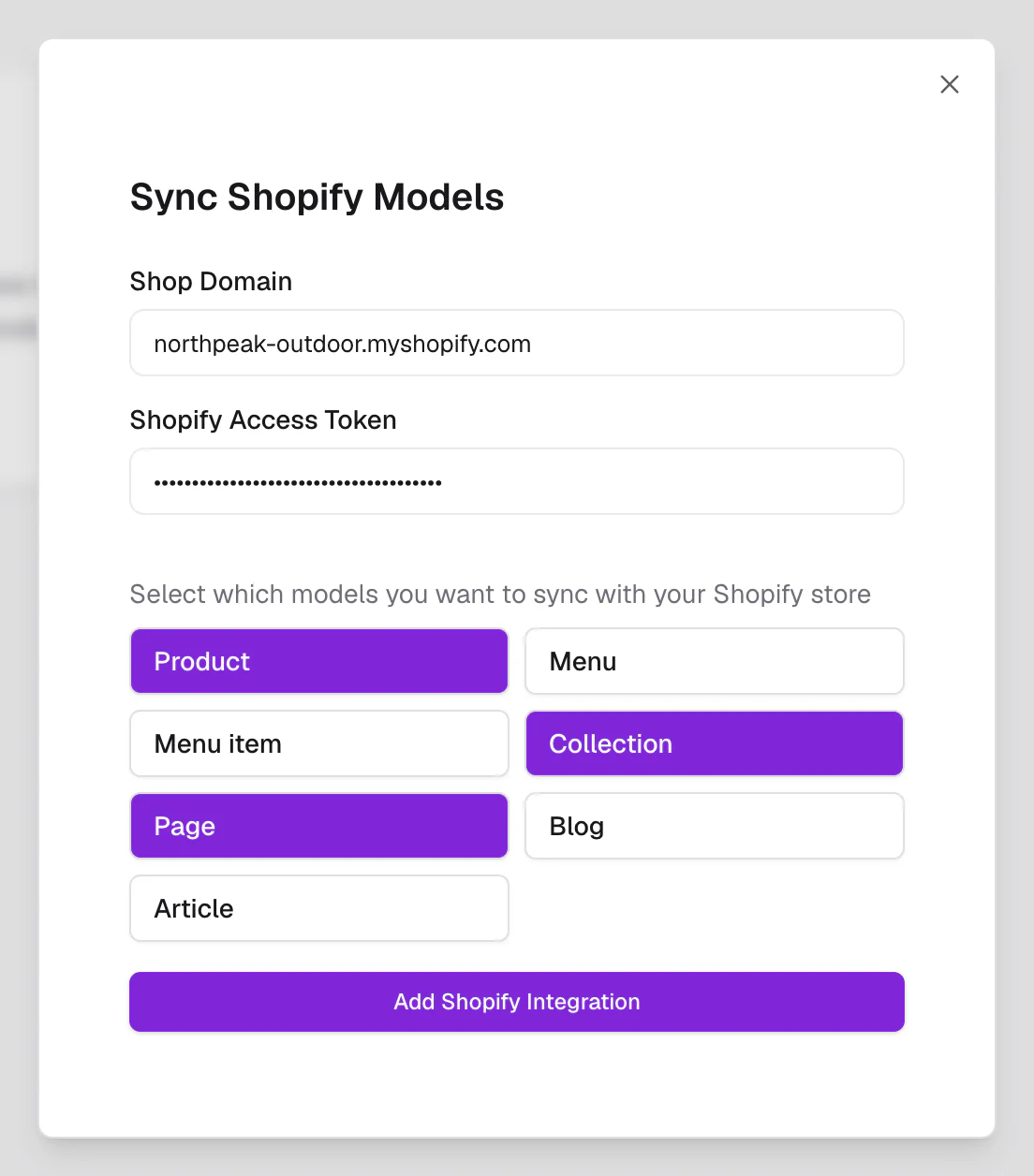
Capa checks the token with Shopify before it saves anything. If the check fails, you see "Failed to add Shopify integration": check the domain and the token's access.
The store now shows on the Connected tab.
What Capa creates
Connecting adds these models to your project:
| Model | Holds |
|---|---|
shopify_product | Products |
shopify_product_variant | Each product's variants, up to 100 per product |
shopify_collection | Collections |
shopify_page | Online store pages |
shopify_blog | Blogs |
shopify_article | Blog articles |
shopify_menu | Navigation menus |
shopify_menu_item | Menu items, up to three levels deep |
Read them like any other model:
curl -G https://cdn.capacms.com/api/entries/shopify_product \
  -H "x-api-key: $CAPA_KEY" -H 'Capa-Version: 2026-10-01' \
  --data-urlencode 'select=title' --data-urlencode 'limit=10'
How the sync works
- Shopify wins. Each sync overwrites the fields that come from Shopify. Edit those in Shopify, not in Capa.
- Your fields are kept. Fields you add to these models yourself, such as a longer description or a hero image, survive every sync.
- New items arrive published, so your site can read them straight away.
- Items deleted in Shopify are deleted in Capa on the next sync.
After you connect, choose Manage on the store's card and run the first sync with Sync Now. After that, Capa syncs the store every hour. You can also run Sync Now up to five times an hour.
Manage or remove the connection
Choose Manage on the store's card to see its status and sync it.
To disconnect, choose Remove Integration and confirm. Removing stops the sync. The Shopify models and their entries stay in your project.
The card's badge says how the store stands: Connected, Syncing, Pending or Failed.
Known limits
- Capa syncs the store every hour. A change in Shopify shows in Capa after the next sync, or straight away with Sync Now.
- Metaobjects, customers and orders are not synced.
- A product brings at most 100 variants. Menus are read three levels deep.
Who sees the token
Admins and developers manage the connection. Only the project owner sees the full token. Everyone else sees it masked, such as shpat_****1234.
Related
- Build a model: add your own fields to the Shopify models.
- Entries reference: read and filter the synced entries.